We know the feeling: you’re excited about a new gadget, but trying to find the perfect model online turns into a frustrating, hour-long hunt. Slow loading times, irrelevant results, and having to know the exact product name just to find it.
That era of "digging" is officially over.
The team at Crescit Cloud is thrilled to announce a massive overhaul of our core search technology, focusing specifically on making your entertainment tech journey faster, smarter, and more visual than ever before. We didn't just tweak the algorithm; we supercharged it with AI.
Here’s a deep dive into the two major enhancements designed to bring you "Less digging, more doing."
1. The Supercharged Search: AI That Reads Your Mind
The heart of our update is our new AI-driven search engine. This isn't your average keyword match; this is semantic search designed to understand intent and context.
What this means for you:
- Typo Tolerance is a Superpower: Forgot how to spell that obscure audio brand? Typo in the model number? No problem. Our AI instantly recognizes and corrects misspellings on the fly, ensuring you still land on the exact device or specification sheet you need.
- Lightning Speed: Powered by Crescit Cloud’s robust infrastructure, the search experience is now remarkably fast. Get your results in a blink, every single time.
2. Discover Entire Catalogs with New Manufacturer Pages
When you love a brand, you want to see everything they offer. Our second major update introduces dedicated, comprehensive Manufacturer Pages.
Instead of piecing together a brand's catalog from scattered search results, you can now:
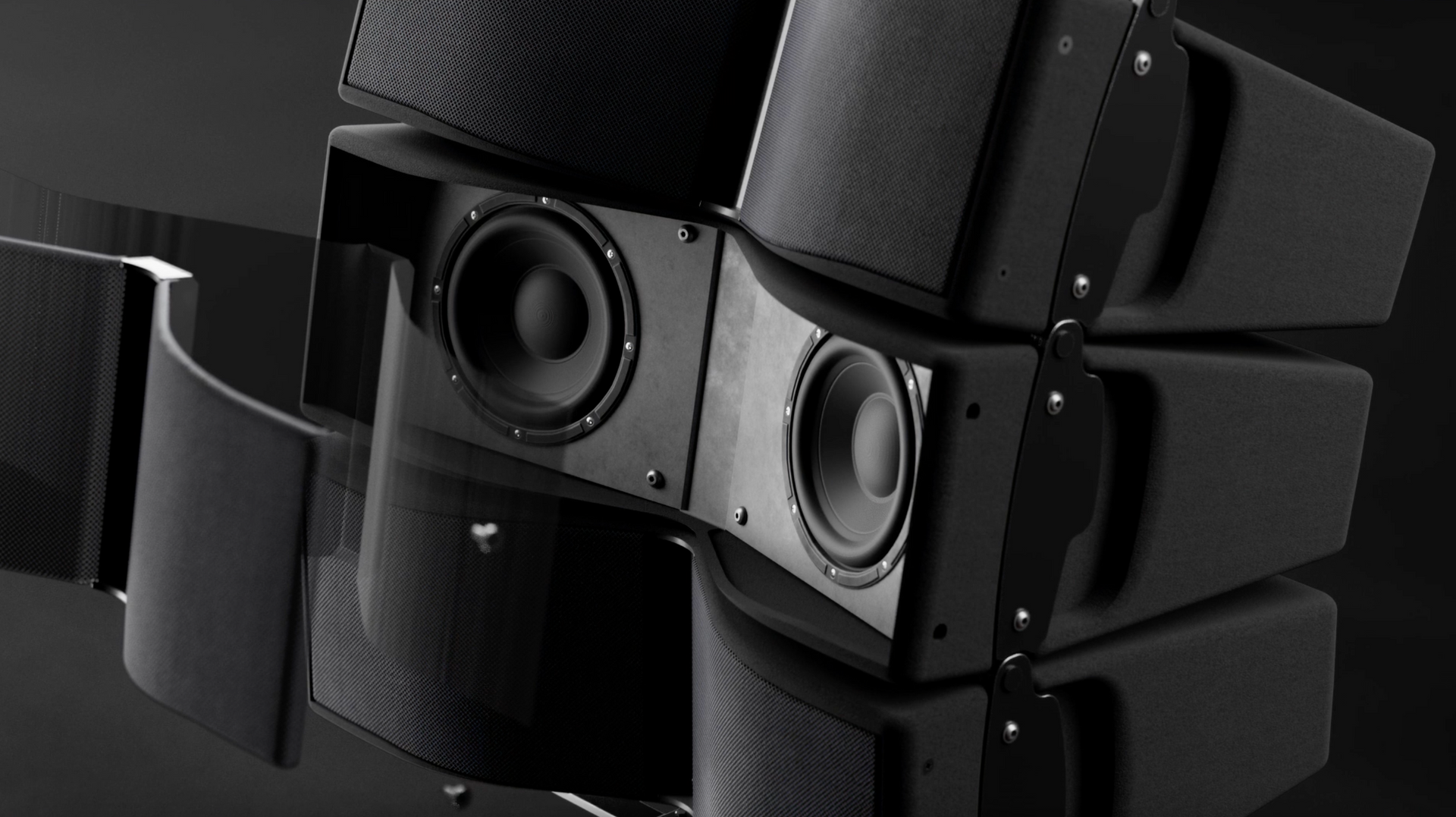
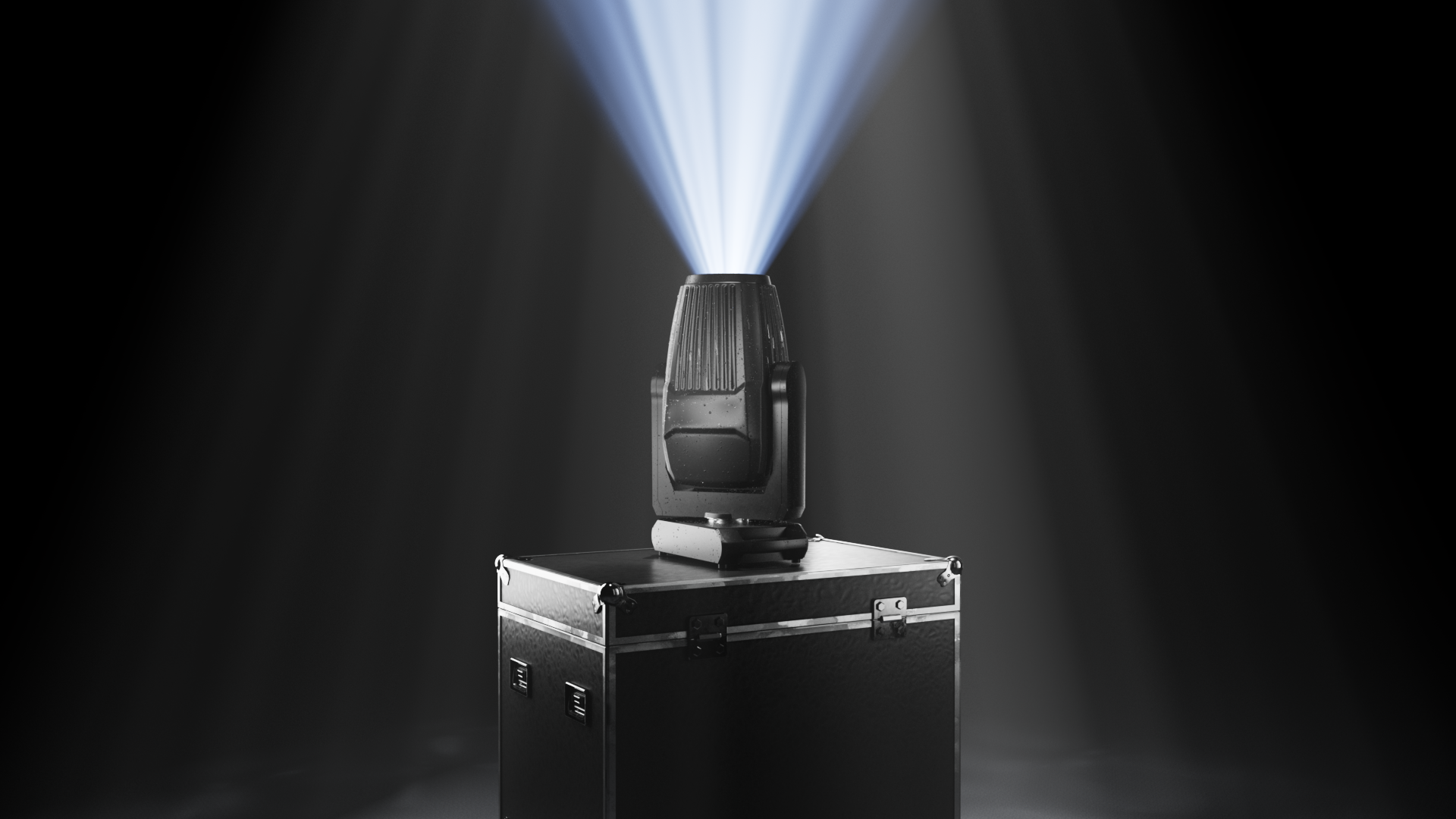
- Dive Deep: Access an entire, organized collection of devices from your favorite manufacturers—from flagship fixtures to essential audio components.
- Simplify Brand Loyalty: Quickly compare different product lines (e.g., a lighting manufacturer's "Profile" line vs. their "Wash" line) without leaving the page.
- Stay Up-to-Date: These pages are constantly updated, ensuring you see the absolute latest releases the moment they become available in our library.
3. An Overhauled Display: Visual, Fast, and Functional
We know that when specifying equipment, images and quick facts are everything. We’ve redesigned the search results display to prioritize visual speed and information efficiency:
- 🖼️ Large, Crisp Images: Identify the device or product you're looking for immediately. The larger images allow you to quickly confirm the visual aesthetics and design.
- ✅ Quick-Find Product Tags: Every result now features prominent tags (e.g., DMX Fixture, 5.1 Channel Soundbar, Video Projector). These tags allow you to confirm the product type instantly and even serve as quick filters to refine your search even further.

Your Questions, Answered: The Search Update FAQ
Why did Crescit Cloud invest in an AI-driven search update?
We recognized that our users—AV and lighting professionals—need to find precise information on specific devices, often under tight deadlines. The new AI-driven search significantly reduces the time spent sifting through results, improves accuracy even with complex or partial queries, and ultimately helps you move faster from design concept to final specification.
Does the new search prioritize certain manufacturers or products?
No. The AI is designed for relevance based on your search query and the detailed specifications in our database. It does not prioritize products based on advertising or partnership status. The goal is to deliver the most accurate match to your professional needs, regardless of the brand.
How do the new Manufacturer Pages help me with my project work?
These pages act as centralized hubs for all devices from a specific brand within our library. This is especially useful for maintaining brand consistency in a project, quickly reviewing a brand's entire range for alternatives, or finding manuals and resources, all in one consolidated location.
I noticed my search result images are larger. Is this optional?
We've made the visual overhaul a core part of the experience to help with rapid visual confirmation, which is essential when dealing with thousands of device models. The larger, high-quality images alongside the quick-find tags are now standard to maximize efficiency and reduce the need for extra clicks.
Less Digging, More Doing.
At Crescit Cloud, our goal is to build the technology that gets out of your way. These updates reflect our commitment to speed, accuracy, and user experience for the entertainment tech community. We’ve taken the frustration out of finding the right specs so you can spend less time searching and more time creating.
Experience the lightning-fast Crescit Cloud search today! 💡
Ready to find your next device? Click here to start your Supercharged Search now!